Word Compare Not Working: Fix the Actual Failure
Quick Answer
In desktop Word, choose Review > Compare > Compare two versions of a document—not Combine—then select the original and revised files and show changes in a new document. If the command is missing, open the file in desktop Word. If the dialog errors, save local .docx copies and retry. You do not need to close every document or disable Track Changes first.
The reliable fix in 60 seconds
Use desktop Word, then follow this exact path:
- Open the original and revised documents.
- Go to Review > Compare > Compare two versions of a document.
- Choose the older file under Original document and the newer file under Revised document.
- Expand More only if you need to change which differences Word includes.
- Under Show changes in, choose New document.
- Select OK. If Word warns that one version contains tracked changes, read the prompt and continue only if accepting those existing revisions for the comparison is appropriate.
Word should create a third document showing changes as revision marks. The two source files remain unchanged when the comparison is shown in a new document. This is the workflow documented by Microsoft Support for Word for Microsoft 365, Word 2024, 2021, 2019, and 2016.
Important correction: closing every document, turning off Track Changes, or choosing Combine is not a universal prerequisite for Compare. Those blanket steps can distract from the real failure.
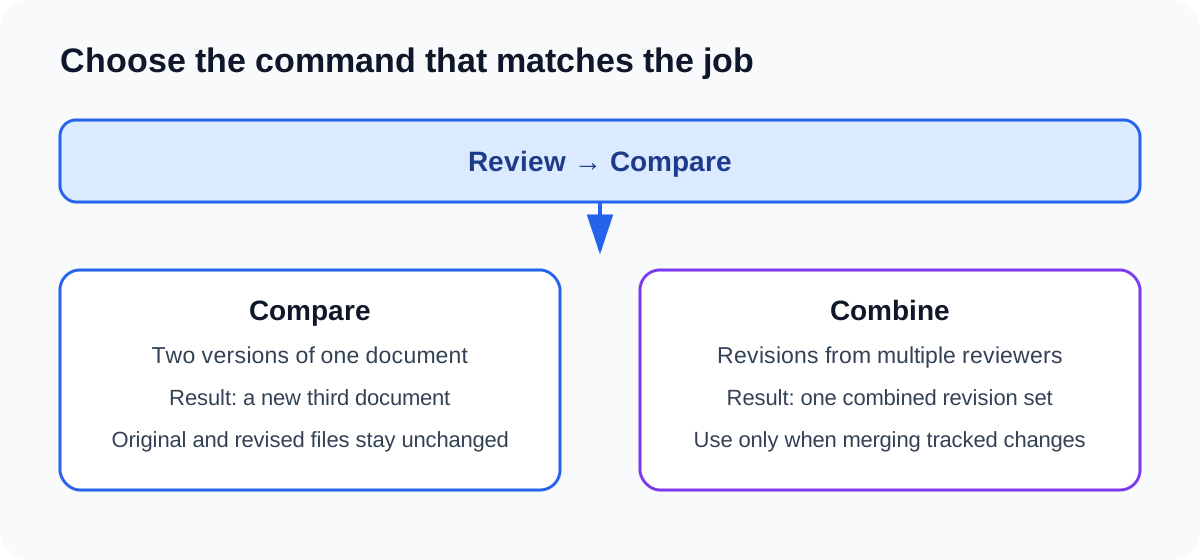
Open the diagram at full size.
Compare is for two versions; Combine is for revisions from multiple reviewers.
First identify what is failing
“Compare is not working” can mean four different things. Use the section matching what you see instead of applying every possible reset.
| Symptom | Most likely next check |
|---|---|
| Compare is missing or disabled | Confirm you are in desktop Word and the ribbon is expanded. |
| The dialog opens but Word reports an error | Work from local .docx copies and test whether either file is damaged or restricted. |
| A result opens but appears empty | Check original/revised order, comparison options, and markup display. |
| You expected several reviewers’ edits in one file | You may need Combine, not Compare. |
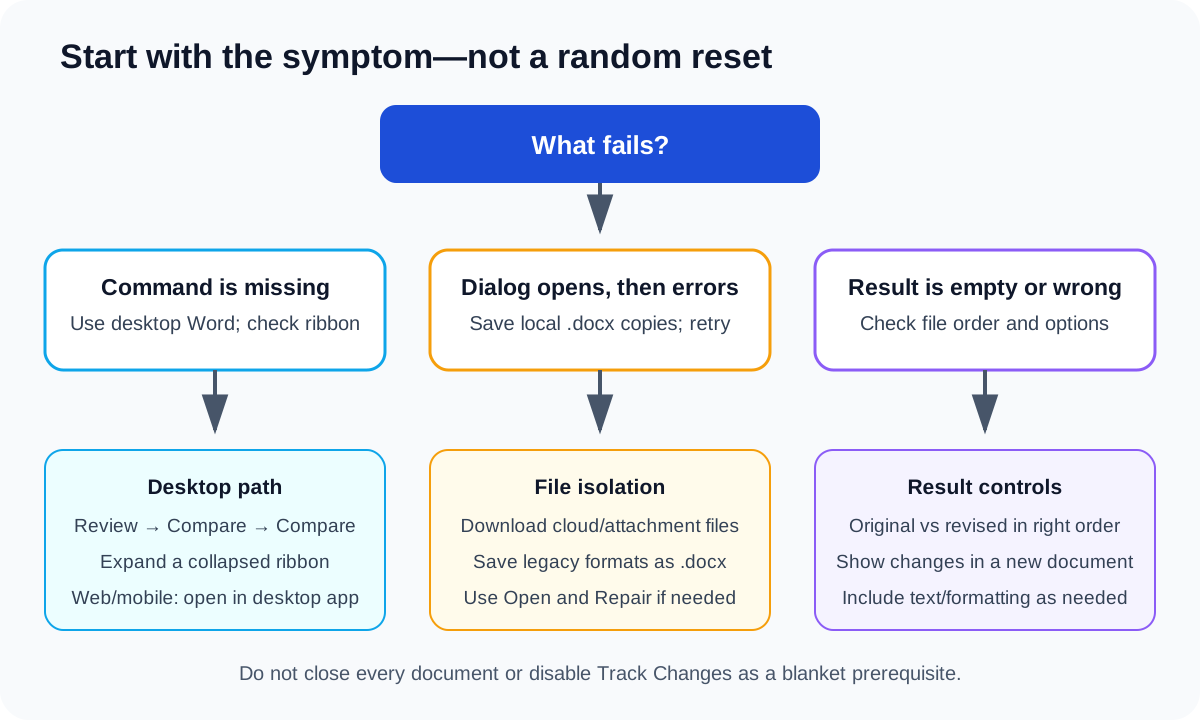
Open the diagram at full size.
Start with the visible symptom so that you change only the setting related to the failure.
Symptom 1: Compare is missing or disabled
Open the document in desktop Word
The complete Compare workflow is available in supported desktop versions of Word. If the document is open in a browser, select Open in Desktop App or download a copy and open it in Word for Windows or Mac.
Microsoft’s current Word web-versus-desktop feature comparison lists Compare and Merge revisions as a desktop capability. A browser tab can therefore display the document correctly while still lacking the command you need.
Expand or search the ribbon
In the desktop application:
- expand the ribbon if only tab names are visible;
- select the Review tab;
- look for the Compare group; or
- use Word’s search box and search for Compare Documents.
On a narrow window, Word may collapse commands into a smaller menu. Maximize the window before assuming the feature has been removed.
Check editing restrictions
If the file is read-only, protected, or opened from an untrusted attachment, save an authorized working copy before comparing. Do not bypass an organization’s security policy or disable Protected View globally. Confirm the file’s source before enabling editing.
Symptom 2: The dialog opens, but comparison fails
Make controlled local copies
Cloud sync, attachment previews, permissions, and legacy formats can complicate troubleshooting. Preserve the originals, then:
- Download or copy both files into a new local folder.
- Give them distinct names such as
proposal-original.docxandproposal-revised.docx. - Open each copy separately and confirm that Word can display and save it.
- If a file is an old
.docfile, use File > Save As to create a.docxworking copy. - Run Compare again using those two copies.
This isolates a file-access problem without changing the authoritative documents.
Test for a damaged source document
If one copy will not open or save normally, comparison is not the first problem to solve. In desktop Word for Windows, use File > Open > Browse, select the file, open the arrow next to Open, and choose Open and Repair. Save any recovered content under a new name and keep the original unchanged.
If the document contains macros, protected content, or rights-management controls, do not strip those protections merely to make comparison work. Ask the document owner or administrator for an appropriate comparison copy.
Read the tracked-changes prompt correctly
Microsoft notes that when either source contains tracked changes, Word can prompt before creating the comparison. That prompt does not mean Track Changes must always be disabled in advance. It means Word needs you to decide how the existing revisions should be handled in the comparison result.
If retaining the separate review history is the real goal, create backups and consider Combine instead.
Symptom 3: The result is empty, incomplete, or confusing
Confirm file order
Put the earlier or authoritative version in Original document and the later version in Revised document. Reversing them does not erase differences, but it reverses the meaning of insertions and deletions and can make the result look wrong.
Show the result in a new document
Under Show changes in, select New document. This gives you a separate result and protects the source files. Microsoft warns that choosing the original or revised document instead can modify the selected file.
Choose the comparison level
Open More in the Compare dialog and verify the items relevant to your job, such as:
- text changes;
- formatting;
- comments;
- headers and footers;
- tables; and
- footnotes and endnotes.
You can also show changes at the word or character level. Character-level comparison is more granular but can make a heavily edited document difficult to read.
Make markup visible
If the third document opens but seems unchanged, go to Review and choose a markup view that displays revisions, such as All Markup. Check the Reviewing Pane if the inline display is crowded. A clean-looking page can reflect a display setting rather than an empty comparison.
Symptom 4: Compare was the wrong command
Use Compare when you have an original and one revised version and want a new blackline document.
Use Combine when multiple reviewers returned copies with tracked changes and you need one consolidated set of revisions. Microsoft’s Mac comparison and merge instructions make the same distinction: Compare shows differences; Combine merges revisions.
Keep backups before combining. A combined result is easier to audit when reviewer names are correct and each input contains a clean, identifiable revision history.
Platform notes
Word for Windows
Use Review > Compare > Compare two versions of a document. The labels above match Microsoft’s current Windows support flow. Menu arrangement can vary with ribbon width and update channel.
Word for Mac
Microsoft documents Review > Compare > Compare Documents for supported Mac versions. The dialog wording and location of advanced options may differ from Windows.
Word for the web and mobile apps
Use the browser or mobile app to review and make supported edits, but move to desktop Word for the full Compare/Combine workflow. Do not assume a missing browser command means the files themselves are incompatible.
What not to do
- Do not overwrite either source file with the comparison result.
- Do not remove security controls or enable editing for a file you do not trust.
- Do not accept every tracked change just to silence a prompt unless that matches the review policy.
- Do not repeatedly rename extensions from
.docto.docx; use Save As so Word performs a real conversion. - Do not use Combine when you only want a two-version blackline.
- Do not close all documents or disable Track Changes as an unexplained ritual.
A safe verification checklist
Before sharing the result, confirm:
- the older file was selected as Original;
- the newer file was selected as Revised;
- the result opened as a third document;
- additions and deletions have the direction you expect;
- required formatting, comments, headers, and tables were included;
- both source files still open unchanged; and
- the result was saved with a new, descriptive filename.
Where GenText fits—and where it does not
GenText does not replace Word’s Compare engine. Use Word to create and inspect the blackline first. If the comparison reveals passages that need rewriting, the GenText Word add-in can help draft or rephrase selected text while you remain responsible for reviewing the wording and preserving the approved revision history.
Primary sources
Frequently Asked Questions
Do both documents have to be closed before I use Word Compare?
No. Microsoft's current Compare instructions begin with both documents open. Closing every document is not a required prerequisite. Compare creates a third result document and leaves the two source documents unchanged when the result is shown in a new document.
Should I choose Compare or Combine in Word?
Choose Compare to see the differences between an original and a revised version. Choose Combine when you need to merge tracked revisions from multiple reviewers into one revision set.
Why is the Compare command missing in Word for the web?
The full document-comparison workflow is a desktop Word feature. Open the file in a supported desktop version of Word, then use Review > Compare. Word for the web can preserve many document features but does not expose every desktop review command.
Will comparing two Word documents alter the originals?
Not when you keep the default result in a new document. Microsoft states that legal blackline comparison creates a third document and does not change the two source files. Avoid choosing to show changes in the original or revised document unless that is intentional.
Keep writing after the comparison
GenText does not repair Word's Compare command. Once the comparison works, use the Word add-in to draft, rephrase, and add peer-reviewed citations without leaving your document.
Try FreeOctober offer: your first month of Premium is free, then $19 a month. On annual billing, your first year is $95. Ends 31 October. Get your free month
Related Guides
Free Microsoft Word reference by email
Useful Word shortcuts and steps for citations, formatting and document review.
The resource is in English, in the email body. You can save or print the email.
Your resource request does not sign you up for tips. Existing email preferences stay unchanged unless you ask to change them. Privacy.
Request received
Please check your inbox for the resource email. If it does not arrive, check your spam folder or contact support@gentext.ai.